
Getting Started Information
A first-weeks guide for new JSU Online students — orientation, the Canvas Student Online Orientation, NetID setup, and the technical requirements to succeed in your online courses.
Getting started information
Welcome to Jackson State University Online! As a new student, we understand that starting university can be a bit overwhelming. That’s why we’ve put together this “Getting Started” guide to help you navigate your first few weeks.
- Orientation: Attend the mandatory orientation program to learn about the university’s resources, policies, and services. You’ll also have the opportunity to meet other new students and current students.
- Get to know your professors: Take advantage of your professors’ office hours to get to know them and ask any questions you may have.
- Take care of yourself: Remember to take care of yourself both physically and mentally. The university offers a variety of resources to support students’ well-being, including counseling services and health services.
We wish you all the best as you begin your journey with Jackson State University Online!
The JSU difference
JSU is an environment that inspires you to grow, learn, and reach beyond the ordinary. This is a “home away from home” where every student can find their place — academically, socially, and culturally.
One of the nation’s top historically black colleges and universities (HBCU), JSU provides a culture of self-discovery and shared experience where its students are able to develop a strong sense of self in a challenging yet nurturing environment that empowers them for personal and professional success.
Explore important links
Canvas orientation & NetID setup
Canvas Online Student Orientation for First-Time Distance Learning Students:
All students must complete the Canvas Student Online Orientation prior to enrolling in their first online, hybrid, or Web-enabled course. Students will be introduced to Canvas components, learn how to submit assignments, take quizzes and exams, view grades, use the discussion board, send emails, and learn other elements that may assist them in completing their online course successfully.
NetID instructions
A NetID is required to access Canvas and other university computer labs. (Please choose a NetID that you will remember and that will not be easily hacked.) You cannot proceed until this step has been completed.
- From the JSU Home Page, log in to JSU P.A.W.S.
- After you log in, from the Main Menu choose Activate NetID, Change NetID Password.
- Create and confirm a new password that is at least seven (7) characters long and similar to one of the following examples: Tiger09, tiger@09, t1ger09, tiger09!
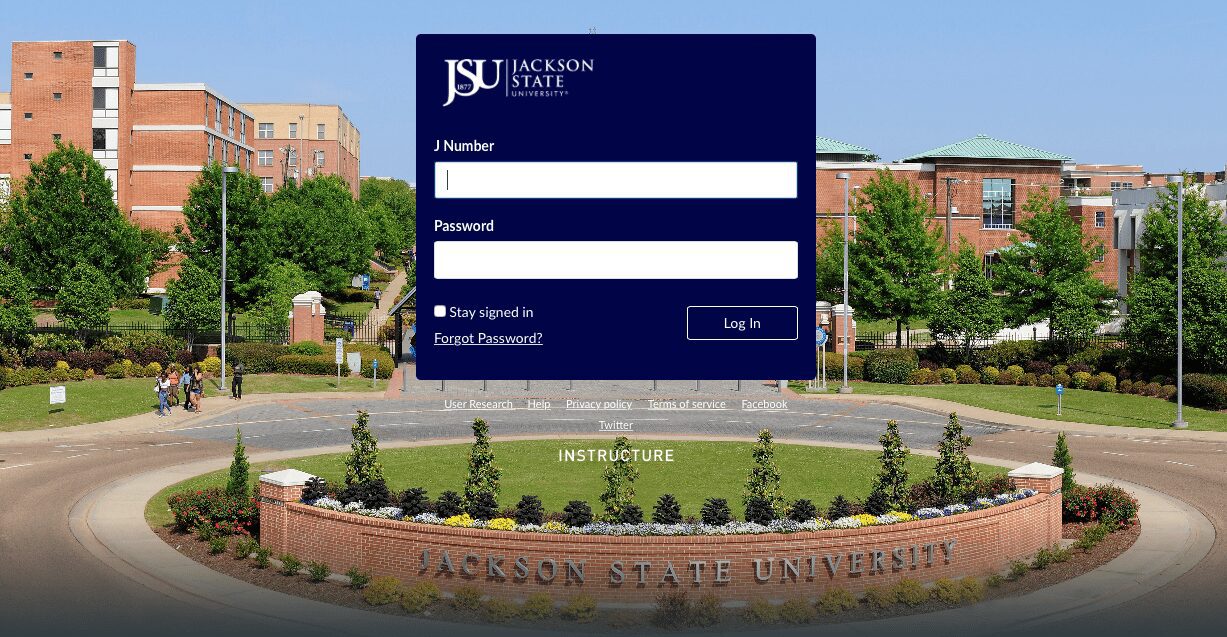
- Accessing the Canvas Learning Management System: To log in to Canvas, go to www.jsums.edu and click on Canvas at the top of the window. Or, click on the Canvas link above and then click Canvas Login.
- Enter your Username, which is your J-Number (capitalize the J), and Password (your NetID) that you set up in Step 1 above.
- Press Login.


If you need further assistance with Canvas only, contact the JSU Canvas Help Desk at (601) 979-0245.
Canvas technical requirements
Here is a list of operating systems and browsers that will work with Canvas; however, we strongly recommend using one of the following web browsers — Google Chrome, Firefox, or Safari — especially for taking tests. The latest versions of Firefox, Chrome, and Safari are all good choices for working in Canvas.
It’s a good idea to have more than one browser installed on your personal computer. Many times, problems you experience online can be fixed by switching from one browser to a different browser.
- course content not opening correctly or showing up at all;
- problems submitting assignments (it will say a file is submitted, but it actually doesn’t submit);
- not being able to submit quizzes and exams.
What internet browser am I using?
Go to supportdetails.com and check the “Browser” box to see which browser you are using.
Browser plug-ins
Plug-ins are add-ons for your internet browser that will make your computer work correctly with Canvas and other programs needed for your online coursework. To use all the features of Canvas, you need to have all the plug-ins necessary for your computer. Below is a list of plug-ins. If you are on your personal computer, click the corresponding link to go to its website to download and install it. If you are on a college, library, or work computer, you can skip this part.
| Plug-in | What does it do? | Where to download |
|---|---|---|
| Adobe Flash | The majority of web videos in Canvas are in Flash. | get.adobe.com/flashplayer Important: when installing, uncheck the optional McAfee offer on the first page. |
| Adobe Reader | Adobe Reader is required if you wish to download and save PDF files. | get.adobe.com/reader Important: when installing, uncheck the optional McAfee offer on the first page. |
| Java | Java is a free program that makes it possible for many communication features to work effectively. Note: as of Google Chrome release 45, Java is no longer supported; if you are using Chrome and need Java, consider switching to Firefox. | java.com/en |
If you are having difficulty getting your computer set up correctly, you can call the IT Help Desk at (601) 979-2069.
Need financial assistance?
Search for scholarships to help fund your JSU Online education.
Connect with us
JSU Online
1400 John R. Lynch St.
Jackson, MS 39217